Documentation
Code screenshots in documentation: image or code block?
Published
Learn when a code image helps a tutorial or presentation, when readers need a text code block, and how to export a readable PNG or SVG.
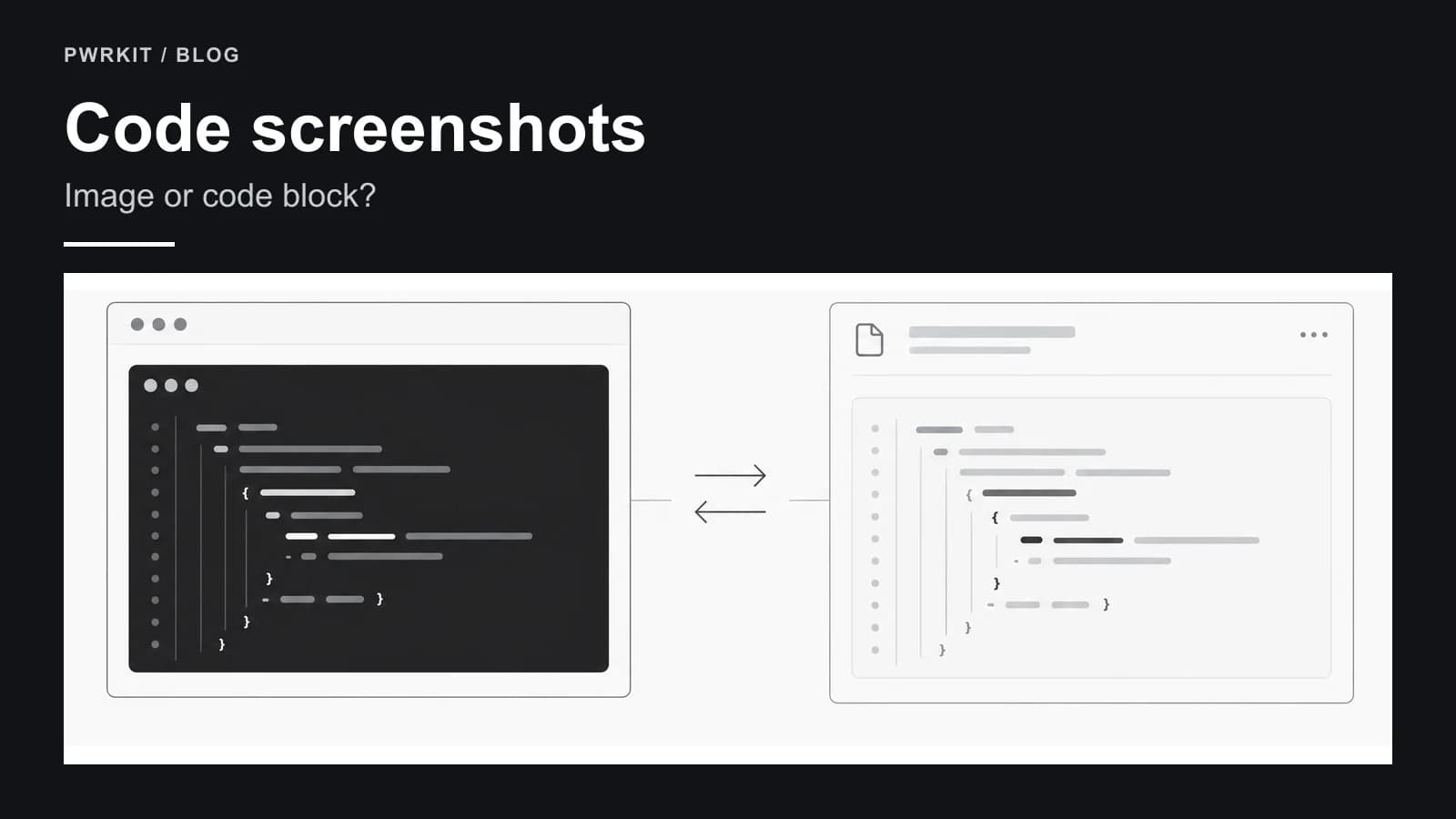
A code screenshot can make one small idea easy to see in a slide or a social post. In documentation, the same image can slow a reader down if it is the only way to get the code. Decide what the reader needs to do before choosing the format.
Choose the format by the reader's next action
Use a code block when someone must copy, search, edit, review, or run the snippet. On GitHub, fenced code blocks can carry a language label for syntax highlighting. They also preserve the code as text. See GitHub's Markdown formatting guide.
Use an image when the layout itself matters: a presentation slide, a tutorial cover, or a visual callout that points to a few lines. Keep the actual snippet nearby as a code block or source link when it teaches an implementation. The W3C recommends real text in place of images of text where possible because readers can resize and restyle text more easily. Its images of text guidance also explains why an image needs an equivalent text alternative when its words carry the meaning.
Prepare the snippet before making an image
Choose the smallest section that proves the point. If the point is how a function handles an empty input, show that branch and enough surrounding code to make the result clear. A whole file shrunk to fit one card becomes difficult to read. Break long lines at useful boundaries and check that the final crop still shows the complete expression.
Remove secrets, internal URLs, customer data, and private comments before exporting. Changing a filename in the card does not remove sensitive text inside the code. Read the snippet once as a stranger would, then export.
Export the image and check the destination
In PWRKIT Code to Image, paste the snippet, choose its language, and adjust the syntax colors, font size, padding, width, line numbers, and window title. The preview updates while you edit. The tool highlights code; it does not run or validate it.
Download PNG for a raster image with a selected 1x, 2x, or 3x scale. SVG is useful when an image must remain sharp at different sizes. MDN's image format guide explains the general difference between raster PNG and vector SVG. PWRKIT's SVG export draws each line as native SVG text, so it opens in browsers and design tools without HTML support. It uses the viewer's system monospace font, so choose PNG when the exact rendering must match everywhere.
Check the image at its published size, especially on a phone. Token colors that look distinct in a large editor can become hard to read after downscaling. Confirm the filename, line breaks, and any text near the crop edge before sharing.
Keep the code available as text
A short alternative description can explain what the image shows, but it does not make the code copyable. If the exact characters matter, include the source as text beside the image. For example, a tutorial can use an image to introduce a snippet, followed by a fenced code block with the complete version. Readers can then inspect or reuse the code without reconstructing it from pixels.
The practical rule is simple: make the image for presentation, and keep text for use. If the image adds no information beyond what a styled code block already shows, the code block is usually enough.